Convert your horizontal videos to vertical without cutting anyone out
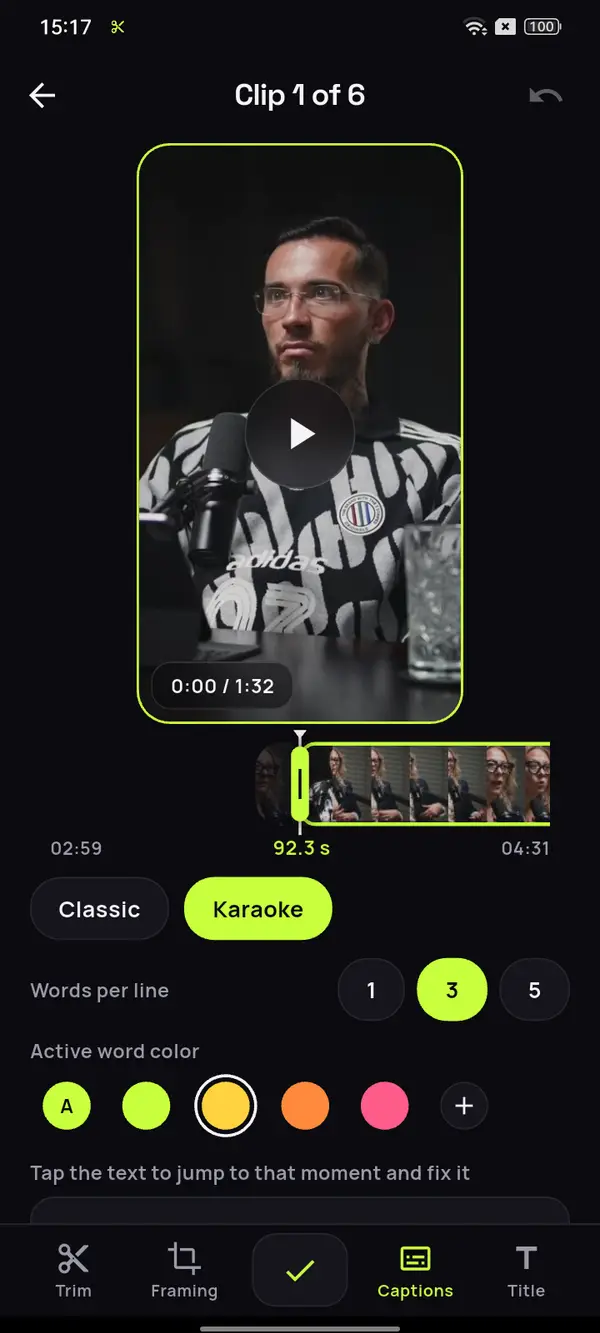
You shot in landscape and want to post vertical. ClipMix follows the face in every shot and, when no face stands out, shows the whole picture over a blurred background. Your videos stay yours.
- 30 free min a month
- No sign-up
- Captions in 6 languages

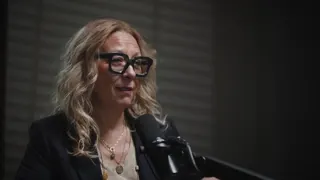
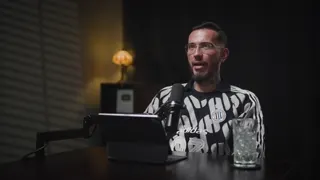
A fixed crop leaves someone out.
The frame has to follow the conversation.
Nobody gets left out
In Auto mode, the frame moves with the face in every shot. If two people share the shot and neither stands out, it shows the shot whole, without cropping anyone, as in many clips from a video podcast.
No cropping when it doesn't fit
In a wide shot, Fit shows the whole picture and fills the gap with the same video blurred, or with black if you prefer.
You have the last word
With Manual you place marks along the clip and decide where the frame looks in each part. With Fixed, you pick a spot and it doesn't move.
A 16:9 interview, in Spanish.
Every answer, vertical.
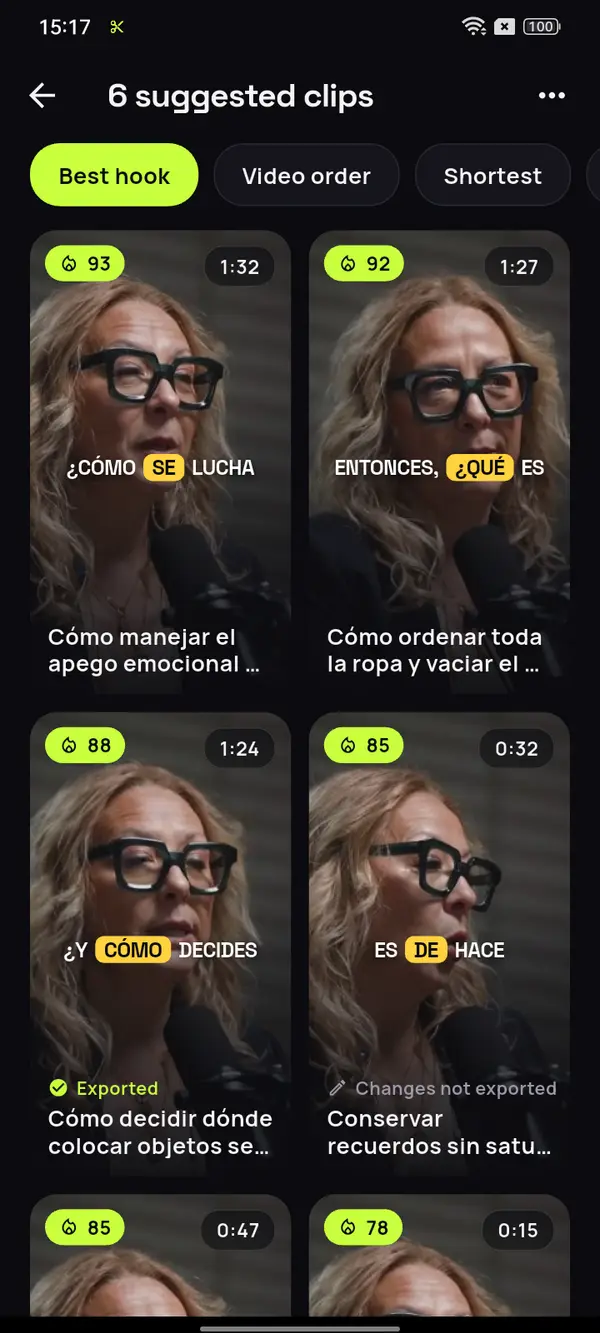
Pick an interview shot in landscape and ClipMix pulls out the moments worth posting already reframed, with the face of whoever's answering in the center of the frame.
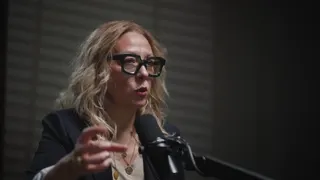
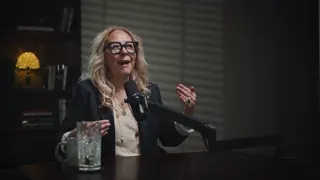
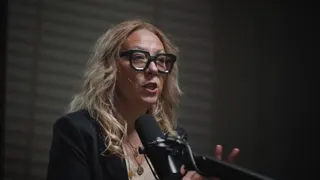
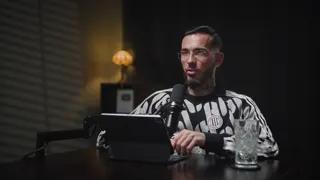
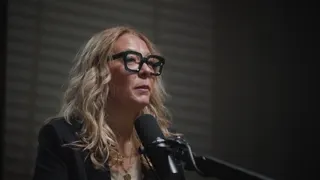


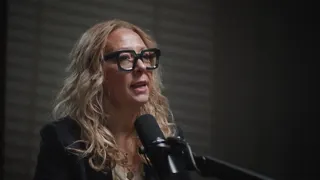
12 clips ready to review
- Analyzing your video
- Picking the moments with a hook
- Getting your clips ready
Socks sorted by color
30% of your wardrobe
T-shirts filed one behind another
Tidy outside, not inside
Video: “Experta en Orden”, by Zoom Out Podcast, licensed under CC BY 3.0. Trimmed, reframed, captioned and translated. Zoom Out Podcast is not affiliated with ClipMix. Illustrative example with real moments from the original video.
From horizontal to vertical
in three steps.
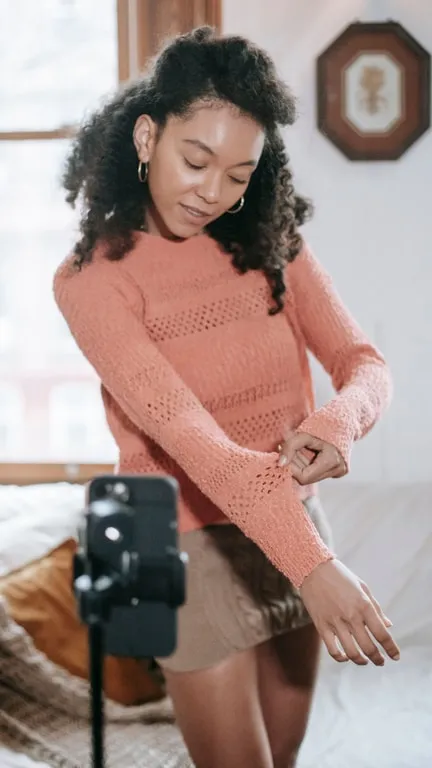
Pick the landscape video
An interview, a talk or a vlog in 16:9, just as it is in your gallery.
Choose the format
Vertical for TikTok, Reels and Shorts, or 4:5 and square if you post to the feed. One for the whole project.
Adjust the framing
Switch modes on any clip and see the result instantly in the preview, offline.
Which framing mode should you use?
Always start with Auto: in most videos with people talking, the frame follows the right person without you touching anything. Check the clips in the preview and change only the ones that need it.
Switch to Fit when the shot matters more than the face, like a group, a landscape or a slide: it happens a lot in talks and webinars recorded in landscape. And if you want the same clip for the feed, switch the project to 4:5: the framing is recalculated for that format and you pick up where you left off. You’ll find every case, shot by shot, in the guide to vertical framing on Android.
Formats and resolution
- 9:16 at 1080×1920, for TikTok, Reels and Shorts.
- 4:5 at 1080×1350, the feed’s portrait format.
- 1:1 at 1080×1080, square.
- 16:9 at 1920×1080, horizontal.
Four modes,
the same clip.
- Auto (face): for interviews, podcasts and any shot with someone talking. It's the default, and wide shots without a standout face are filled automatically.
- Fixed: when what matters is always in the same place, like a whiteboard or a workbench.
- Fit: for groups or landscapes that don't fit vertically; the background can be Blurred or Black.
- Manual: to decide yourself, with marks, where the frame looks at each moment of the clip.
If the video already has the shape of the chosen format, there's nothing to reframe: the clip comes out whole and centered.
Does the picture get stretched when it goes vertical?
No. ClipMix never stretches the video: it either crops a window that follows the face, or shows the whole shot with a blurred or black background around it.
What happens if there are two people in the shot?
In Auto, if both faces are about the same size, ClipMix treats the shot as wide and shows it whole, without cropping anyone. If each has their own camera, or one stands out, the frame follows whoever's speaking. With Manual you choose who to look at in each part.
Can I choose the 4:5 portrait format?
Yes. In the project you choose 9:16, 4:5, 1:1 or 16:9, and all its clips come out in that format. 4:5 exports at 1080×1350.
What if my video is already vertical?
In 9:16 there's nothing to frame and the clip comes out whole. If you want it in 1:1 or 4:5, with Fixed or Manual you choose where it's cropped.
Can I change the framing offline?
Yes. Framing is adjusted in the phone's editor, without a connection, just like the auto captions on every clip. You only need a connection to analyze the video and to export. If you're weighing up tools, see ClipMix vs Opus Clip.
Do you publish my videos anywhere?
No. Your videos are yours alone: we never publish them or sell them. The clips go to your gallery and you decide where to post them. All the details are in our privacy policy.
How much does reframing a video cost?
Reframing is included, with 30 free minutes a month. Free clips are exported after an ad and carry a watermark; with a plan or pack, none do. Pricing and plans.
Your horizontal video
already has a vertical version.
Download ClipMix and turn your latest landscape video vertical. 30 free minutes a month.
Get it free